How to Fax a PDF (and Images): Formatting Tips, Page Counts and File Sizes
Fax a PDF, PNG or JPG straight from your computer. Learn how to prepare files so they arrive legible, how pages are counted and how to stay under size limits.
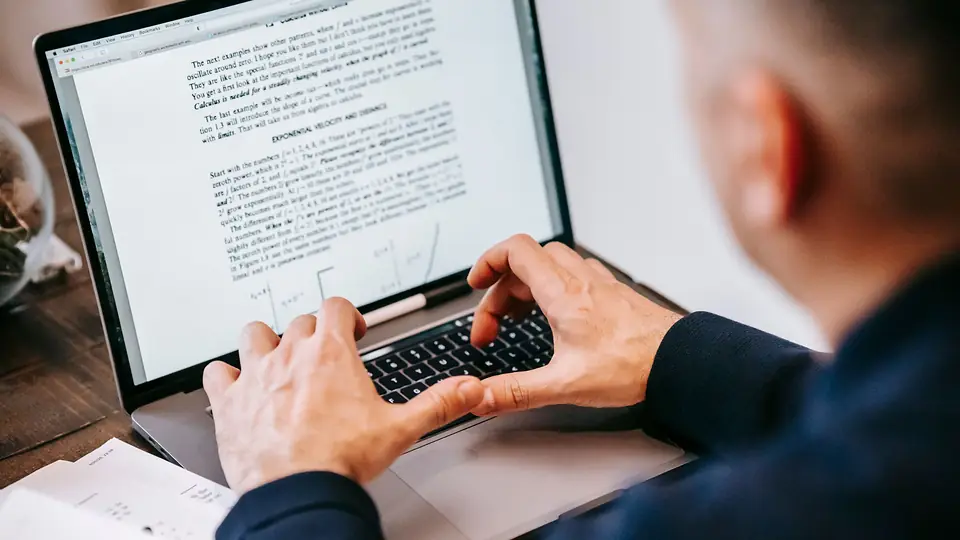
Most documents people fax today already exist as files: a signed PDF, a scanned form, a photo of an ID card taken on a phone. With online fax there is no need to print and feed paper into a machine. You can attach the file directly. FaxToFax accepts PDF, PNG and JPG files up to 25 MB per fax.
How to fax a PDF
- Sign in to FaxToFax in your browser using the one-time code sent to your email.
- Choose Send a fax.
- Choose the recipient’s country, then type the fax number. FaxToFax shows each number back to you, with its flag, before anything is sent.
- Set up your cover page on your letterhead.
- Click to attach, or drag your PDF into the composer. Add more files if needed; they are sent in the order shown.
- Preview, then send now or schedule for later.
- Check your delivery receipt when the fax completes.
Remember what fax can reproduce
Fax is a black-and-white, relatively low-resolution format designed around letter-size paper. Your file is converted into fax pages before transmission. Knowing that helps you prepare documents that arrive clearly.
- Color becomes grayscale or black and white. Light colors, such as yellow highlighting or pale blue form fields, may disappear. Pale gray text may fade.
- Small text gets harder to read. Use at least 10 to 12 point fonts where you can.
- Fine detail is lost. Thin lines and tiny print in photos may blur.
- Page size matters. Letter size (8.5 by 11 inches) works best. Larger pages are scaled down, which shrinks text.
Tips for PDFs
- Export to PDF from your word processor rather than scanning a printout when possible. Digital PDFs produce the sharpest faxes.
- Flatten forms so filled-in fields and signatures appear on the page.
- Remove blank pages, which still count toward your page allowance.
- Make sure the file is not password protected; the system needs to open it to convert it.
- Check orientation. Landscape pages will be rotated or scaled to fit.
Tips for images (PNG and JPG)
- Photograph documents flat, in good even light, with no shadows across the page.
- Crop to the edges of the paper so the page fills the frame.
- Avoid very dark or very low-contrast photos; they turn into gray blocks when faxed.
- Each image becomes one fax page.
- For multi-page documents, combining images into a single PDF keeps them in order.
How pages are counted
Each fax page sent to each recipient counts toward your monthly allowance, including the cover page. A 5-page PDF plus a cover page sent to one recipient uses 6 pages. The Personal plan includes 200 pages per month and Business includes 500.
Keeping file sizes manageable
The 25 MB limit is generous for documents, but scans and phone photos can be large. If you are near the limit:
- Scan at 200 to 300 dpi in black and white or grayscale rather than high-resolution color.
- Use your PDF tool's "reduce file size" or "optimize" option.
- Resize very large photos before attaching. Fax resolution does not benefit from extremely high-resolution images.
- Split very long documents into two faxes.
What file types are not supported?
FaxToFax accepts PDF, PNG and JPG. For a Word document, spreadsheet or other format, save or export it as a PDF first. Most applications offer "Save as PDF" or "Print to PDF."
Related guides
See the full walkthrough in how to send a fax online from your computer and learn what to put on a fax cover sheet. Ready? Get started.