
Clio fax integration: send and receive faxes from Clio Manage
Fax from any matter, contact or document in Clio. Every fax and its proof of delivery are filed back into the right matter automatically, with status notes, and incoming faxes from your clients land in their matter too.
See the Clio integration, stage by stage
A 9-minute walkthrough: connecting Clio, sending from a document, matter or contact, automatic filing with proof of delivery, received faxes, teams, security and what data syncs.
Chapters
- 0:01 Introduction
- 0:30 Why law firms still fax
- 1:08 Why it fits Clio
- 1:28 What makes it better
- 2:13 Stage 1: Connect Clio
- 2:41 Stage 2: Send from a document
- 3:32 Stage 3: Send from a matter or contact
- 3:57 Stage 4: Status notes on the matter
- 4:24 Stage 5: Filed automatically
- 5:02 Stage 6: Received faxes
- 5:26 Stage 7: Save to Clio
- 5:51 Stage 8: Working from FaxToFax
- 6:26 Stage 9: Teams and roles
- 6:47 Security
- 7:46 What data syncs, and when
- 8:19 Reliability
- 8:33 Common questions
- 9:01 Summary
Faxing that lives inside your Clio matters
Send fax from Clio
A Send fax option on every matter, contact and document. Number, matter and document are filled in for you.
Filed automatically
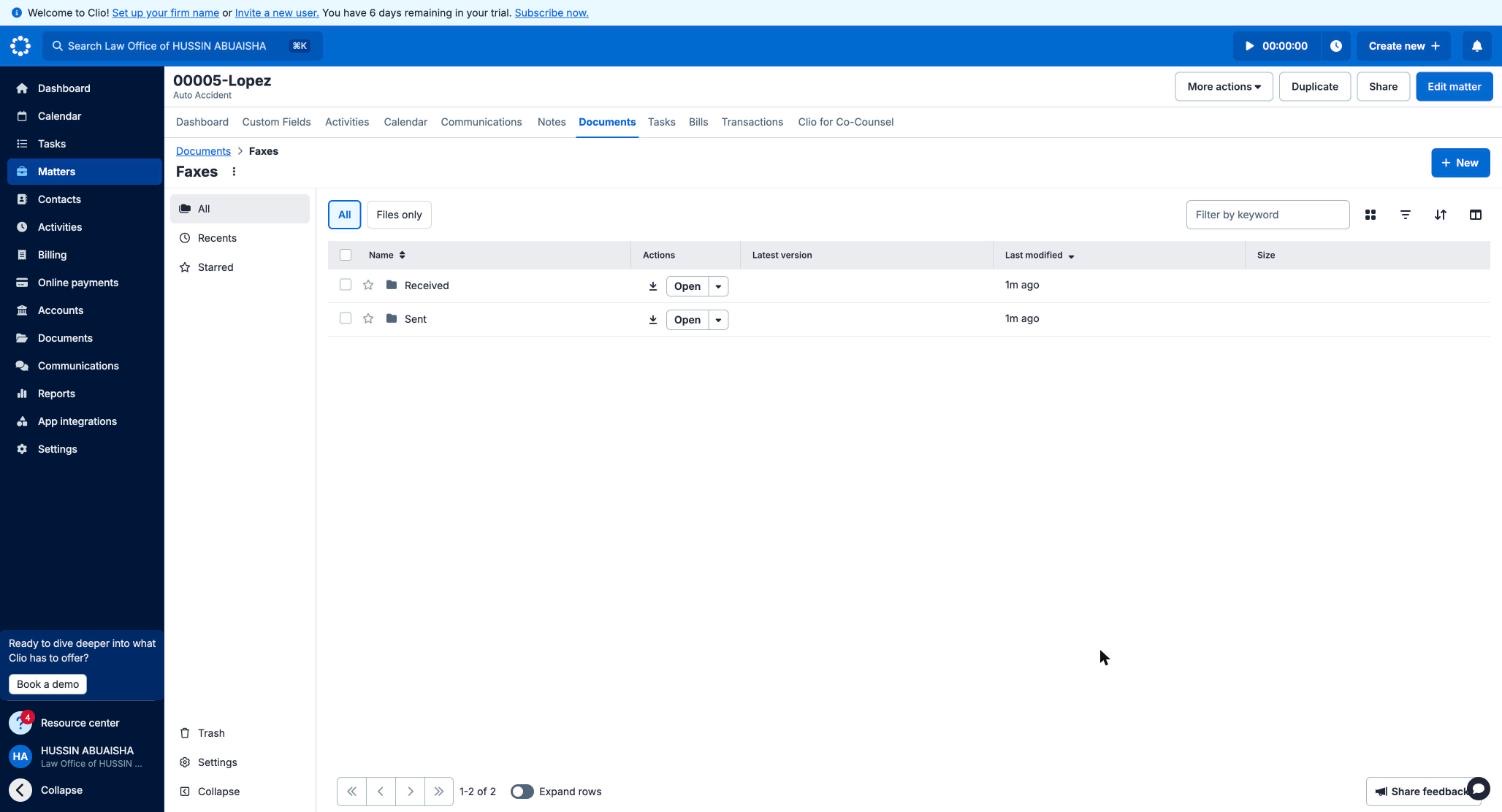
Each fax goes into the matter’s Faxes folder, with Sent and Received kept apart.
Proof of delivery
A delivery confirmation is saved next to every sent fax: recipient, pages, time sent and delivered, and a document fingerprint.
Status notes
Notes on the matter show when a fax was sent, delivered or failed, so nobody has to check another system.
Received faxes filed
Faxes from a known client are filed in their matter automatically, only when the match is certain.
Built for teams
Owners and admins connect Clio; members send and save faxes; viewers can read. Every step is in the audit log.
How to set up Clio faxing in 7 steps
Setup takes about two minutes. You need a FaxToFax monthly plan and a Clio Manage account where you’re able to approve apps.
- 1
Choose a monthly plan
Pick the Personal or Business plan and your firm’s fax number (local or toll-free). The Clio integration needs a monthly plan, because your firm sends and receives on its own dedicated number.
- 2
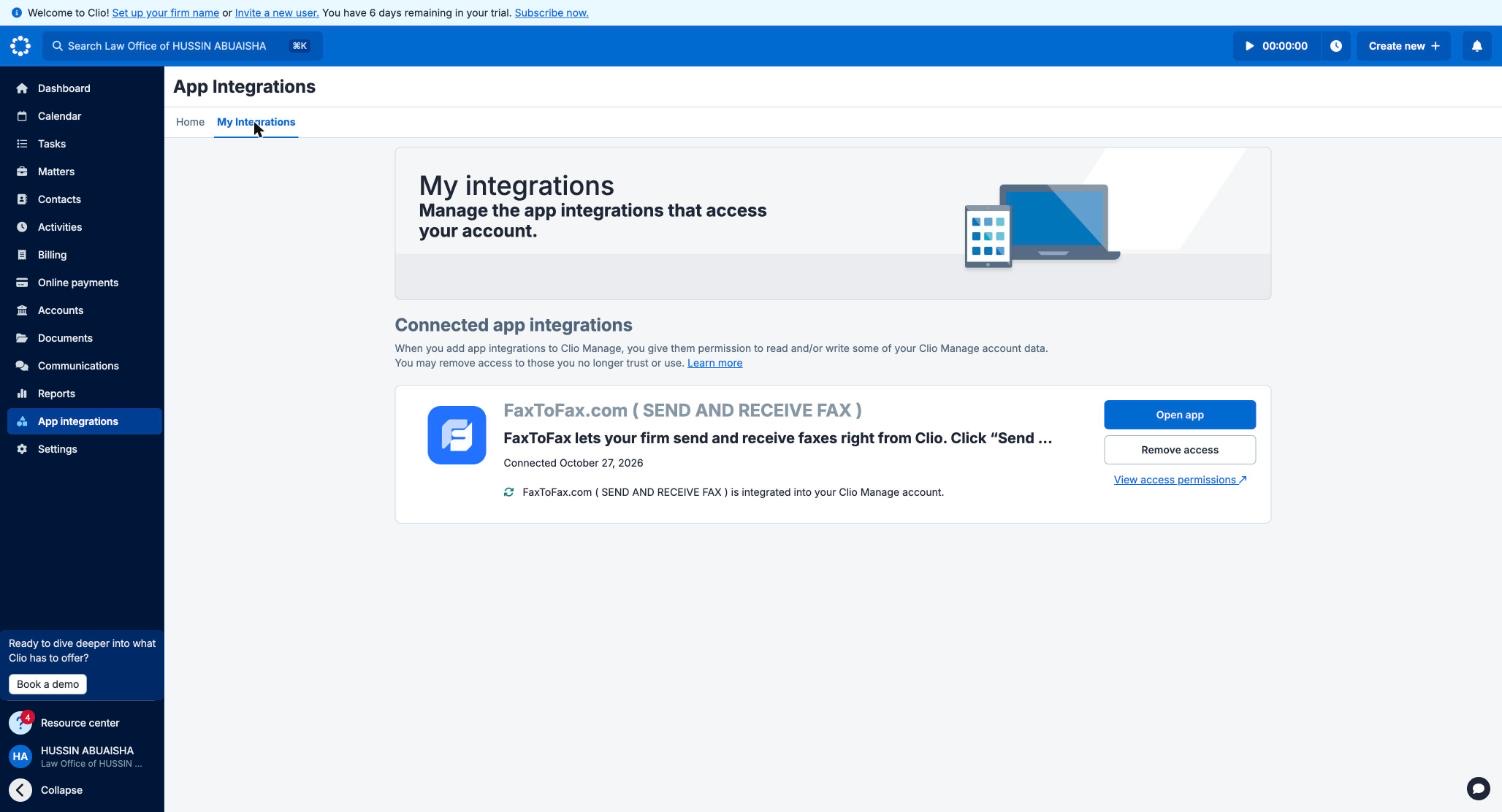
Open Settings in FaxToFax
Sign in at faxtofax.com as the account owner or an admin, then go to Settings and find the Clio card.
- 3
Click Connect Clio
You’re taken to Clio’s own sign-in page. Sign in to Clio Manage and click Allow Access. FaxToFax never sees your Clio password.
- 4
Refresh Clio
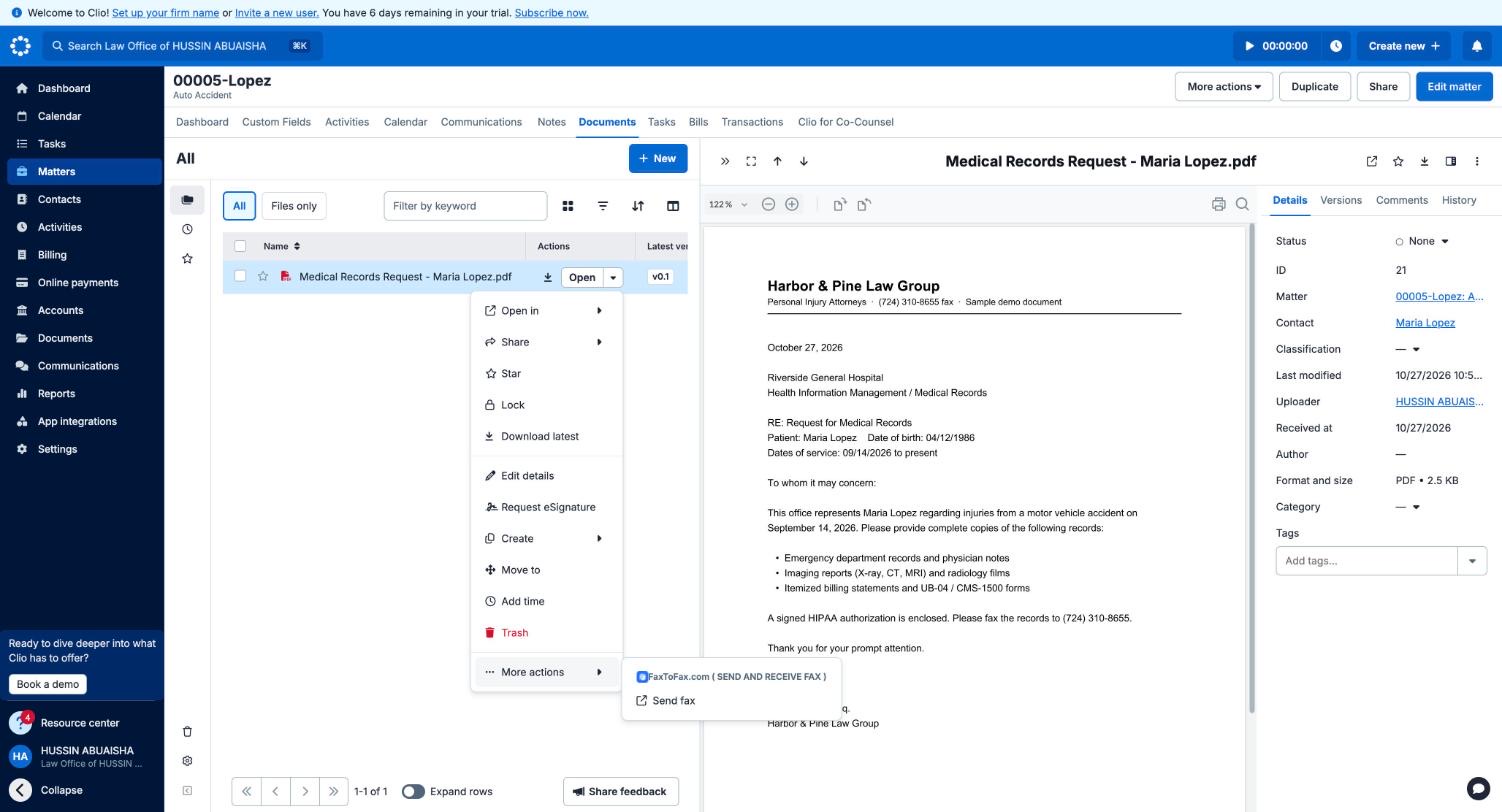
Back in Clio, refresh the page. Open any matter, contact or document, then More actions: you’ll see Send fax under FaxToFax.
- 5
Send your first fax
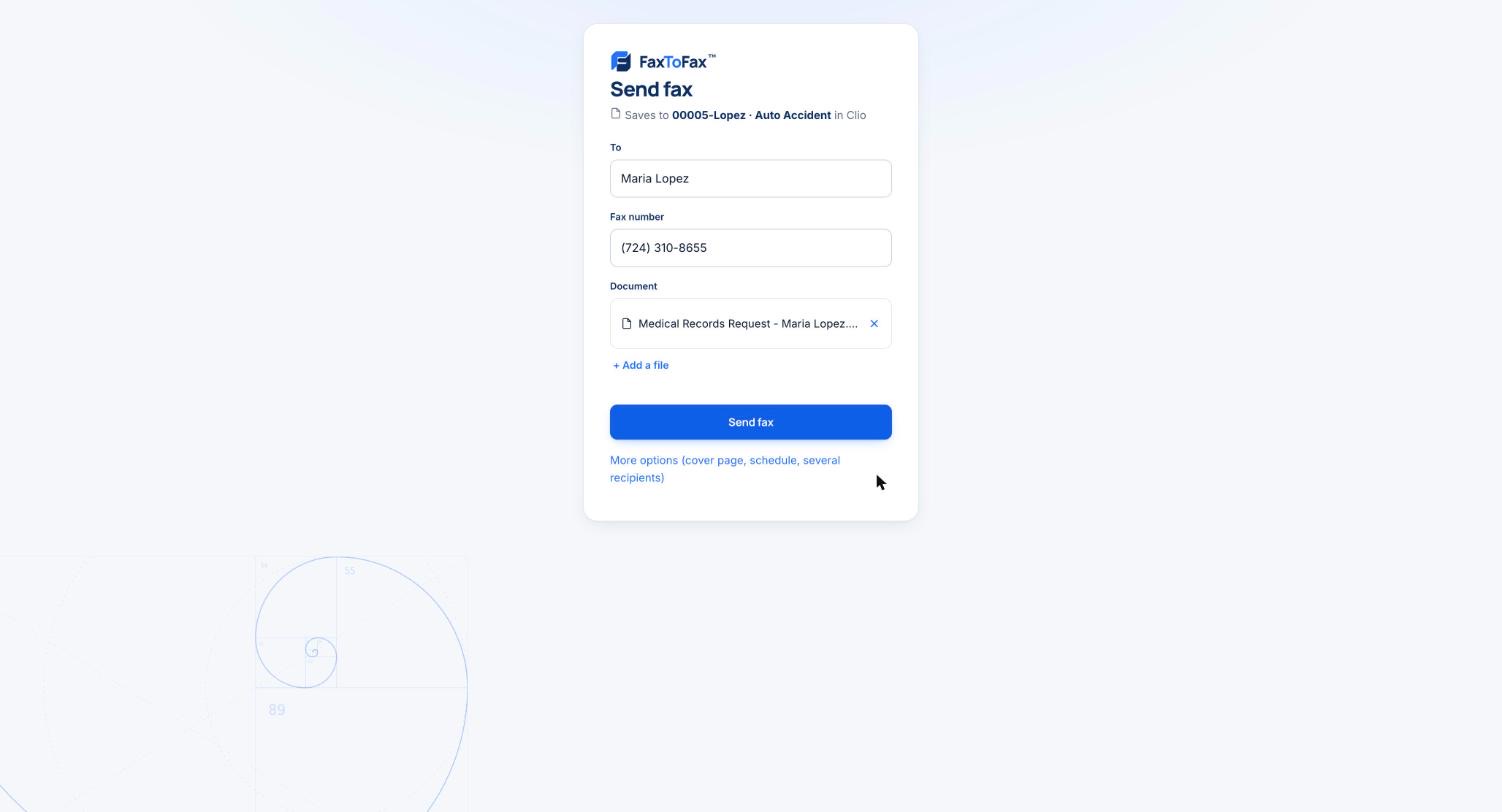
Click Send fax. The client’s fax number, the matter and the document are filled in for you. Check them and click Send fax.
- 6
Check the matter
Open the matter’s Notes to see “Fax sent” and “Fax delivered”, and its Documents → Faxes → Sent folder for the fax and its delivery confirmation.
- 7
Add your team
Invite colleagues to FaxToFax. Each person who connects Clio gets the Send fax option in their own Clio.
How to send a fax from Clio Manage
- Open the document, matter or contact in Clio.
- Click More actions, then Send fax under FaxToFax.
- Check the recipient, fax number and document. They’re filled in from Clio.
- Click Send fax. The window closes and you’re back in Clio.
- Watch the matter’s Notes: Fax sent, then Fax delivered.
From a document, the document is attached and its matter and client are filled in. From a matter, the client is filled in and you add the document. From a contact, the fax number is ready.
Every fax is filed in its matter, with proof
FaxToFax creates one folder per matter and keeps it tidy:
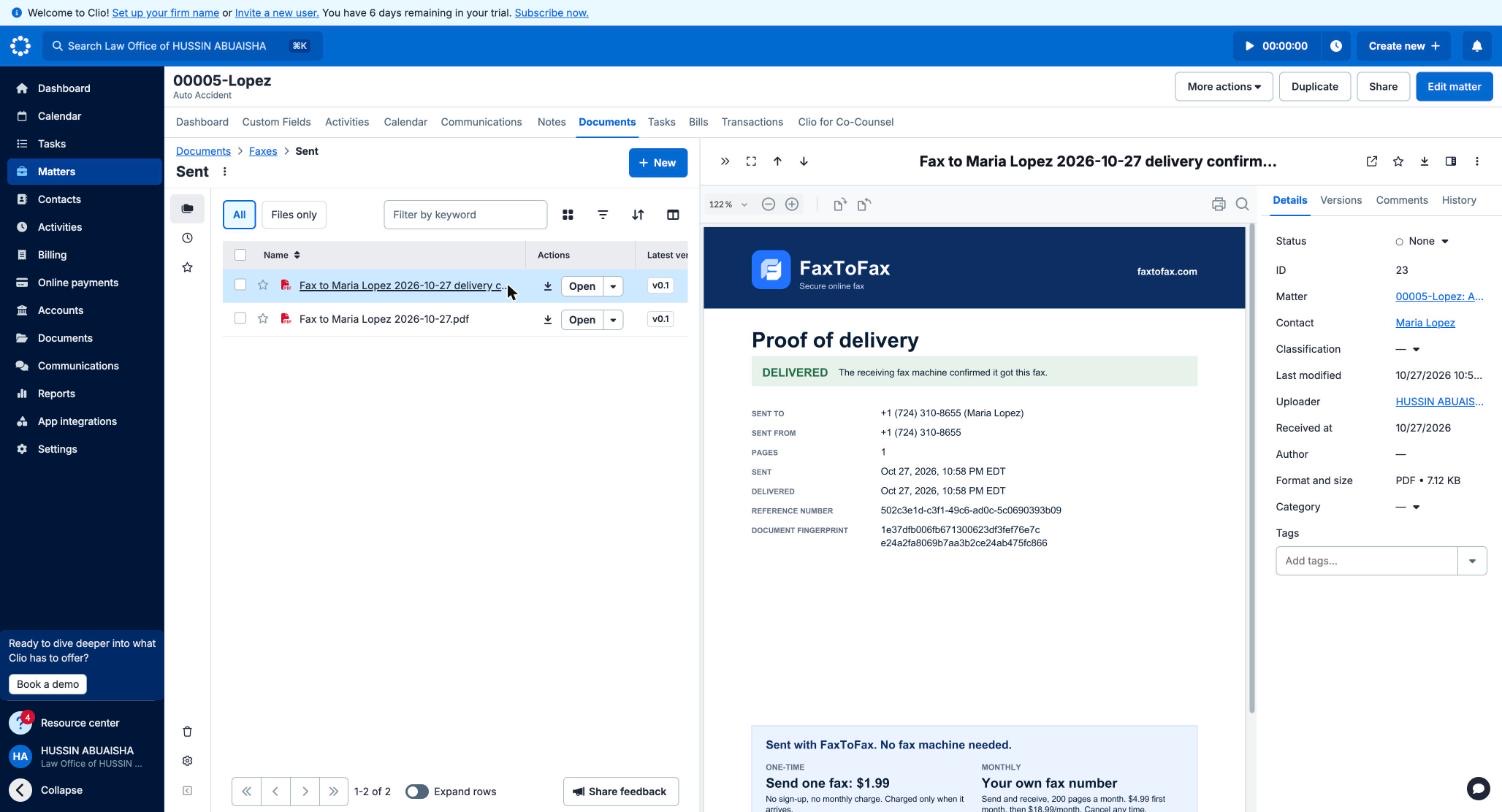
Matter → Documents → Faxes
   ├─ Sent       fax + delivery confirmation
   └─ Received   incoming faxes
- File names include who and when, e.g. “Fax to Maria Lopez 2026-10-27.pdf”
- The delivery confirmation records pages, times, a reference number and a fingerprint
- No duplicate copies when a fax is saved twice
- A deleted folder is recreated on the next save
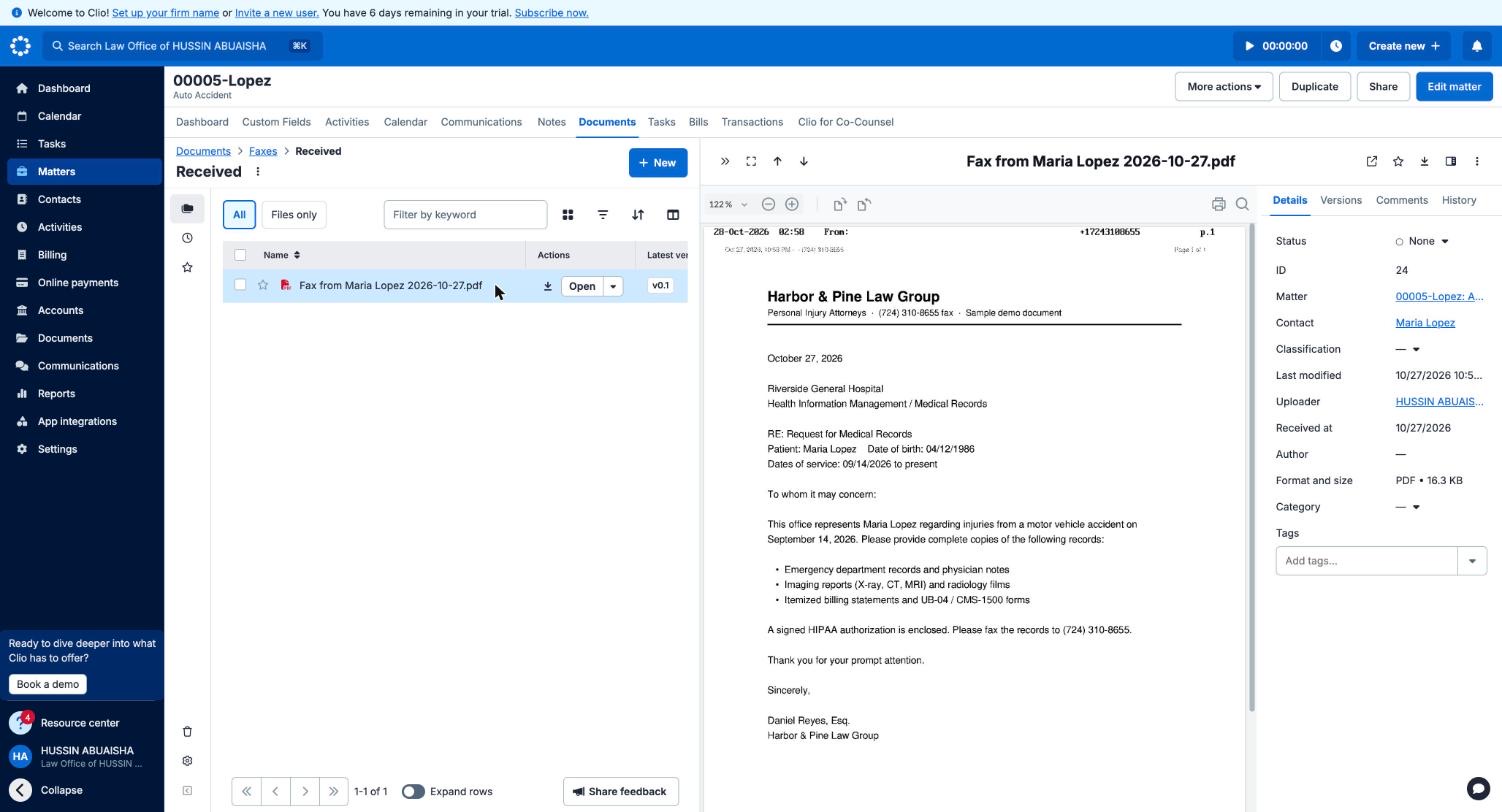
How received faxes reach the right matter
Faxes to your FaxToFax number arrive in your encrypted FaxToFax inbox first, so nothing is ever lost.
- Automatic: when the sending number is on exactly one Clio contact who is the client on exactly one open matter, the fax is filed in that matter’s Received folder, with a note
- One click: otherwise open the fax, choose Save to Clio, search for the matter, and it’s filed
- Never guesses: if it isn’t certain where a fax belongs, it waits for you
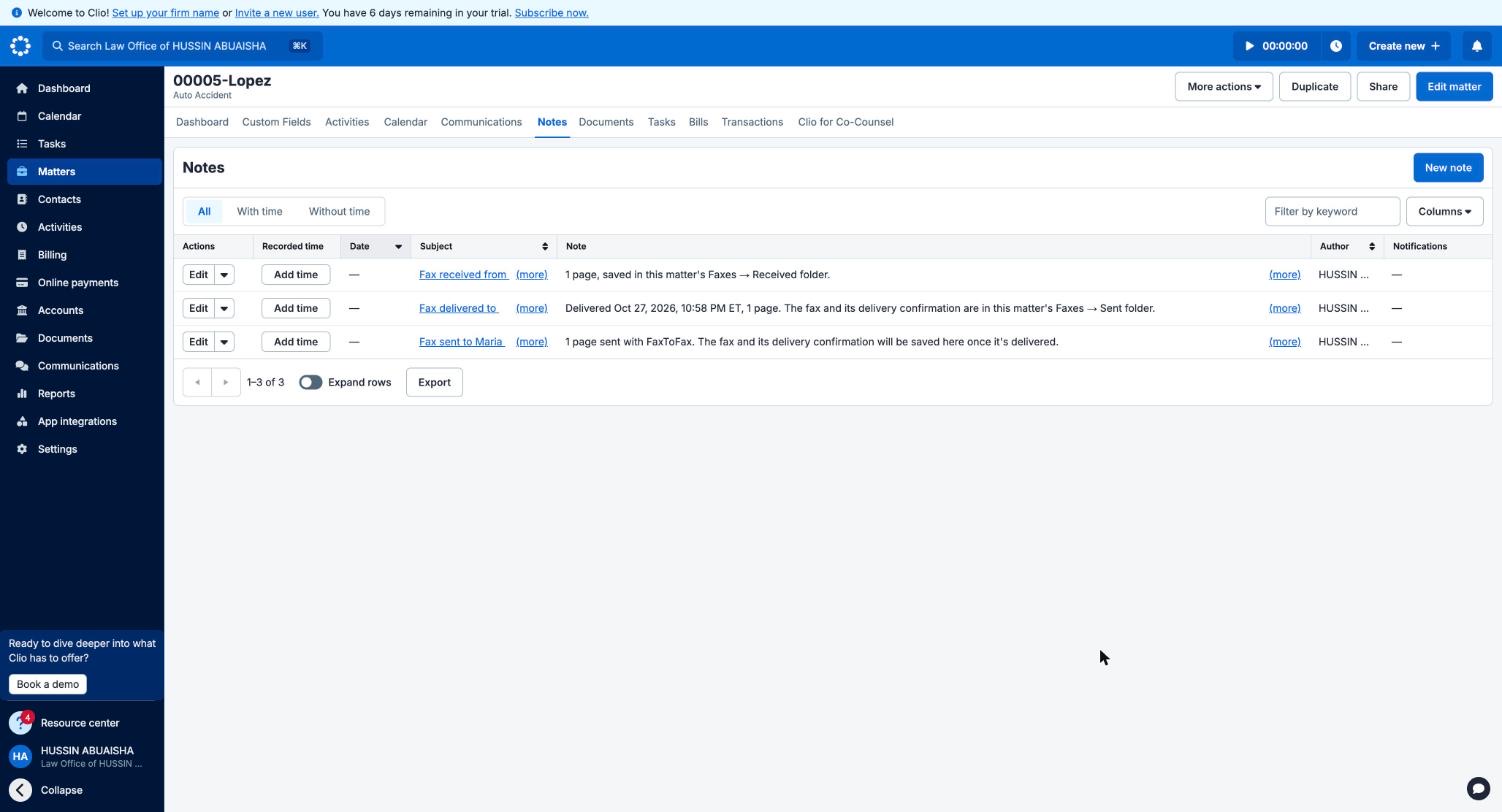
Fax status as notes on the matter
- Fax sent as soon as it goes out
- Fax delivered with the delivery time, or failed with the reason (failed faxes use no pages)
- Fax received when an incoming fax is filed
- Notes also appear in the matter’s timeline
Starting in FaxToFax instead? Use + From Clio to pick a recipient from your Clio contacts, and + File in a Clio matter to file the fax automatically.
Built for client confidentiality
FaxToFax asks Clio for as little as possible and protects what it holds.
Clio’s standard sign-in
You approve access on Clio’s own OAuth screen. FaxToFax never sees your Clio password, and access can be removed from either side.
Encrypted
Clio access tokens are encrypted with AES-256. Faxes are encrypted at rest. Fax contents are never sent by email.
Four permissions
Contacts, Matters, Documents and Custom actions, and nothing more. FaxToFax never edits a contact or deletes anything in Clio.
Audit log
Every send, delivery, view and save to Clio is recorded in an audit log you can export.
Firm controls
Require two-step verification, set automatic sign-out, choose who can download documents, and set how long faxes are kept.
BAA available
The Business plan includes a HIPAA business associate agreement for medical records work.
More in the Trust Center.
For law firms that still fax every week
- Personal injury: medical records requests, HIPAA authorizations, letters of representation and demands to insurers
- Litigation: filings with courts that accept fax, notices and subpoenas for records
- Family law: court forms and records requests to schools, doctors and banks
- Workers’ compensation and disability: forms to state boards and agencies, and medical records
- Estate planning, real estate and immigration: documents for banks, title companies and government offices
Clio fax integration: common questions
Yes. With FaxToFax connected, every matter, contact and document in Clio Manage has a Send fax option under More actions. It opens a short send screen with the fax number, matter and document already filled in.
Yes. Faxes to your FaxToFax number arrive in your secure FaxToFax inbox. When the sending number belongs to exactly one Clio client with exactly one open matter, the fax is filed into that matter’s Faxes → Received folder automatically, with a note. Otherwise, one click on Save to Clio files it in the matter you choose.
In the matter’s Documents, inside a Faxes folder with Sent and Received folders. Sent faxes are saved with their delivery confirmation, and a note on the matter records each step.
Yes. The Clio integration is included with the monthly Personal and Business plans, because your firm needs its own dedicated fax number to send and receive. It isn’t available with one-time faxes.
No. It’s included with your FaxToFax monthly plan. Pages you send and receive count toward your plan as usual.
Four: Contacts (to find fax numbers; Clio requires write access to add matter notes, but FaxToFax never edits a contact), Matters (to file faxes and add notes), Documents (to send files and save faxes) and Custom actions (for the Send fax button).
Faxes are encrypted at rest, Clio access tokens are encrypted with AES-256, and copies at our fax carrier are removed once a fax reaches FaxToFax. You can require two-step verification, set automatic sign-out, and export the audit log. The Business plan includes a HIPAA business associate agreement.
PDF, PNG and JPG documents, up to 200 pages and 25 MB per fax. Save Word files as PDF in Clio first.
No. It only adds fax documents, the Faxes folders and status notes to the matter a fax belongs to. It never changes or deletes existing Clio records.
FaxToFax deletes its stored Clio access and revokes it with Clio. Everything already filed stays in your matters. You can also remove access from Clio under App Integrations → My Integrations.
The Clio integration is available to Clio Manage firms in the United States today. Canada is coming next.
Sign in to FaxToFax as the account owner or an admin, go to Settings → Clio, click Connect Clio, sign in to Clio Manage and click Allow Access. It takes about two minutes.
The integration works with Clio Manage, where your matters, contacts and documents are kept.
No. FaxToFax gives your firm its own online fax number. You send and receive from your browser and from Clio, with no fax machine, phone line or software to install.
Yes. On the send screen, choose More options to open the full FaxToFax editor, where you can add up to 50 recipients, a cover page on your letterhead, or schedule the fax for later. Use + File in a Clio matter there to file it in the matter.
The matter gets a note saying the fax failed and why, for example no answer or a busy line. Failed faxes don’t use any pages, and you can retry from FaxToFax in one click.
FaxToFax won’t guess. A fax from that client waits in your FaxToFax inbox until someone clicks Save to Clio and picks the matter.
Yes, on the Business plan (5 users included, more available). Invite your team to FaxToFax; each person who connects Clio gets the Send fax option in their own Clio. Owners and admins manage the connection, members send and save faxes, and viewers can read faxes.
Moving an existing number to FaxToFax isn’t available yet. You get a new local or toll-free number with your plan, and can add more numbers if you need them.
FaxToFax is built for regulated work: encrypted storage, an audit log, automatic sign-out and access roles. The Business plan includes a signed HIPAA business associate agreement (BAA).
In FaxToFax, your firm chooses how long faxes are kept in Security & compliance. Copies filed in Clio follow your Clio document settings, so your matter keeps them.
Pages count toward your monthly plan: 200 pages on Personal and 500 on Business, sent and received combined. See pricing for details.
Fax from Clio. Filed in Clio.
Get your firm’s fax number on a monthly plan, connect Clio in two minutes, and send your first fax from a matter today.
The Clio integration is included with monthly plans at no extra charge. Questions? Contact us.